 DeleteText
Image Text Editor Online
An image text editor online for removing lettering you no longer want. Brush over the words, AI rebuilds the background, then download a clean PNG.
Sign in to upload. New accounts get 5 free credits.
- New accounts get 5 free credits.
- JPG, PNG, WebP · Up to 20 MB
- Version history
DeleteText / 01
Keep the picture. Lose the lettering.
A caption does not have to cost you the whole composition. Select the lettering, rebuild that area, and review the result against your original.
Illustration using a text overlay on a sample photo. Results on your image depend on the background and selection.
Upload image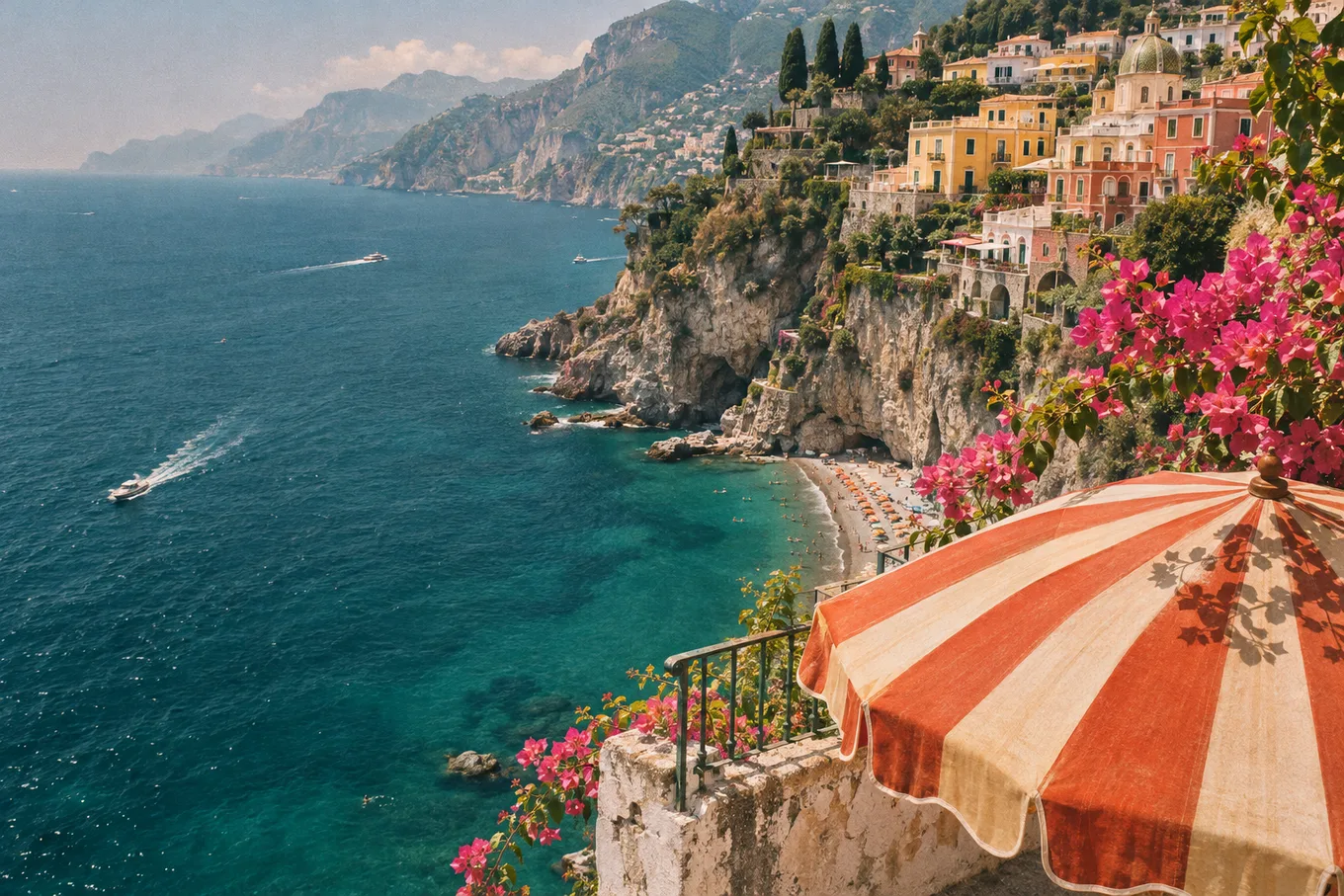
DeleteText / 02
How It Works
Open the image in your browser
Drop in a JPG, PNG or WebP up to 20 MB, or paste from the clipboard. No install and no project file to set up.
Select only the lettering
Zoom in, set the brush from 4 to 200 px, and paint over the words, outlines and shadows. Undo any stroke.
Compare versions and export
Press Erase, review the rebuild with the comparison slider, keep the best version, and download a PNG.
DeleteText / 03
A cleaner starting point for your next project
From a single caption to a page of lettering, choose the workflow that fits your image.
Text Remover From Image
Need a text remover from image files with busy backgrounds? DeleteText rebuilds what is behind the letters — posters, packaging, signage and more.
Remove Text From Photo
Remove text from photo files — dates, signs, captions and tourists' graffiti — while keeping faces, skin and detail untouched. 5 free credits.
Remove Text From Manga Pages
Remove text from manga pages and comics before typesetting: erase lettering from speech bubbles and sound effects while keeping line art intact.
Most pages you reach from a search for an image text editor online promise to retype the words in your picture: you type a replacement and the AI tries to match the original font. DeleteText does something narrower, and for a surprising number of jobs it is the more useful half of that workflow. This is an online editor for the text you want gone — a caption baked into a screenshot, a price stamped onto a product photo, a date on a scanned form, a subtitle across a still, a watermark on an image you own. You brush over the lettering and the AI rebuilds the background, so the picture reads as though the words were never there. If you need to change the wording, you will still want a text-replacement editor. If you need the lettering cleared before you add something new — or simply want the clean image back — you are in the right place.
What editing means here
A lot of image editing is subtraction. Reusing a banner with last quarter's offer means removing last quarter's offer first. Preparing a screenshot for a tutorial means clearing the annotation someone else left on it. Translating a poster, refreshing an e-commerce image or repurposing a slide all start from the same step: get the existing lettering out without damaging the composition underneath. That is the entire job of this image text editor online. It does not add text, swap words, change fonts, translate copy or reflow a layout. What it gives you is a clean plate you can take into whatever design tool you use next. Being explicit about that boundary matters: a tool that claims to do everything usually does the part you actually need worse.
Why an editor in the browser
There is nothing to install, no licence to manage and no project file to keep in sync between machines. Open the page on a laptop, a tablet or a phone, drop in a JPG, PNG or WebP up to 20 MB and 8000 by 8000 pixels — or paste straight from the clipboard — and the editor is ready. Your images live in a private workspace rather than in a folder on a shared computer, so you can leave an edit and come back to it, compare attempts, or delete any image whenever you like. EXIF and GPS metadata are stripped when an upload is re-encoded. For work that only comes up a few times a month, that is a great deal less friction than keeping desktop software installed and current. Sign-in is required before an upload, which is also what keeps your version history private to your account.
How the editor behaves
The controls are deliberately few. Zoom to 100% or beyond for small type, set the brush anywhere from 4 to 200 pixels, and paint over the letters together with their outlines and drop shadows. Undo and redo work stroke by stroke, and the eraser trims a selection that went too far. Press Erase and, in roughly 10 to 60 seconds, the masked area is rebuilt from the texture, colour and lighting around it. Everything outside your brush is composited back unchanged: there is no full-frame blur and no black rectangle dropped over the words. Each successful erase becomes a new version in your workspace, so you can compare two attempts with the slider, return to an earlier one, or continue editing from the version you prefer. Download a PNG and check the repaired area at full size before you publish it.
Where it fits, and where it does not
Typical jobs include cleaning captions and subtitles out of stills, removing dates, stamps and signatures from scans, clearing promotional text from product photography, wiping old annotations from screenshots, and preparing comic or poster art for new lettering. On flat backgrounds one pass is usually enough. On busy textures, work in regions: a wide brush for the main letters, then a small one for edges and shadows. Two light passes generally preserve detail better than one heavy selection. The model reconstructs what it can infer from neighbouring pixels, so it cannot guarantee the exact artwork that was hidden, and a very large covered area may need several attempts. This editor does not read your text — there is no OCR and no text layer to select — it works only on the pixels you paint. If the job is to replace words with different words, use a text-replacement tool instead, or add your own lettering on the cleaned image afterwards.
Credits, downloads and recovery
A successful erase uses 1 credit, and new accounts start with 5 free credits, so you can try the editor on a real file before spending anything. Failed tasks are not charged. Downloads made with free credits carry no watermark and are capped at 1024 pixels on the long edge; paid credits unlock the original resolution. Pro adds 600 credits for $9.9 and Business 3,600 credits for $29 — both one-time credit packs, not subscriptions. If a rebuild leaves a letter edge or a shadow behind, select just that small area and erase again; you keep the earlier versions either way. Open an image, brush out the words you no longer want, and see how much cleaner the picture looks.
An edit you stay in control of
Choose exactly what changes
Your brush defines the repair area. Keep nearby labels, faces and product details outside the selection. The edge is blended to help the repair meet the original.
Keep every attempt
Each erase adds a version to your workspace. Compare the result, return to an earlier version, or continue editing from the one you prefer.
Review before you download
Check the repaired area at full size with the comparison slider. A second, smaller selection can help remove a remaining letter edge or shadow.
Before you call it finished
Start with the sharpest original available. Repeatedly compressed screenshots leave less detail for the repair.
Cover the complete letter, including its outline and shadow. Keep important edges outside the selection where possible.
Check both close up and at normal viewing size. Detailed patterns and large covered areas may need several passes; AI cannot guarantee the exact hidden original.
DeleteText / 05
FAQ – Frequently Asked Questions
Can this image text editor replace or retype words?
No. DeleteText removes lettering and rebuilds the background. It does not add, rewrite or replace text — add new wording afterwards in a design tool if you need it.
Does the editor work on a phone or tablet?
Yes. It runs in the browser on desktop and mobile and accepts JPG, PNG and WebP files up to 20 MB and 8000 x 8000 px.
What happens to the pixels I did not brush?
They stay untouched. Only the masked area is rebuilt; the rest of the image is composited back unchanged, without a blur or a black box.
Can I undo an edit or try a different version?
Each successful erase creates a version in your private workspace. Compare attempts, go back, or continue editing from the one you prefer.
What does an edit cost?
New accounts get 5 free credits and each successful erase uses 1; failed tasks are not charged. Free-credit downloads are capped at 1024 px with no watermark, and paid credits unlock original resolution.
Know what your edit includes
Try with free credits
New accounts receive 5 credits. Free-credit downloads have no watermark and a maximum long edge of 1024 px.
For your final files
Paid credits unlock original-resolution downloads without a watermark. Each successful erase uses 1 credit; failed tasks are not charged.
Your image, with room for something new.
Bring your photo, screenshot or scan. Choose the text to remove and keep the version that works for you.